
Best Cinematic Portrait Prompts for AI Photo Editing in 2026
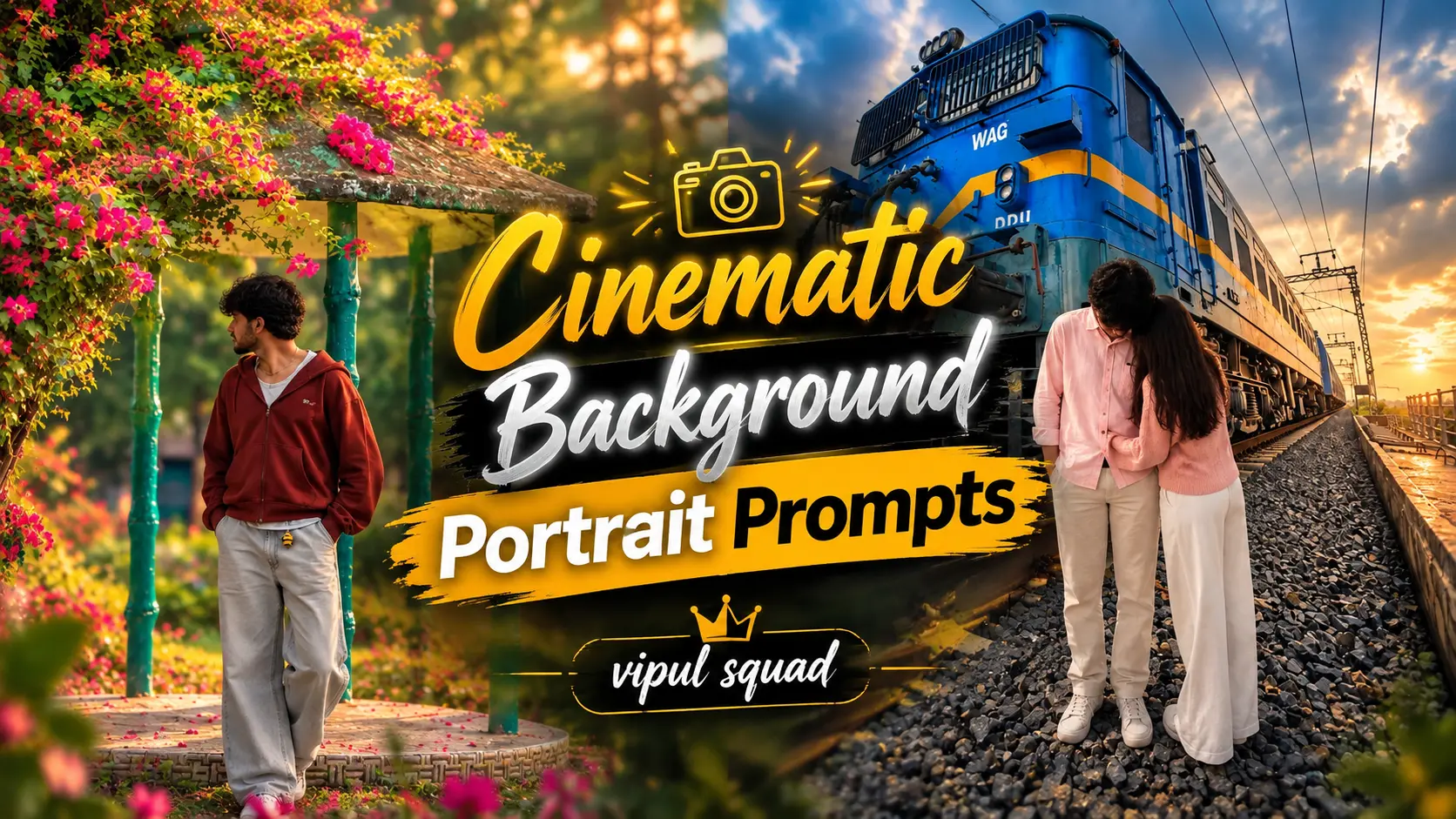
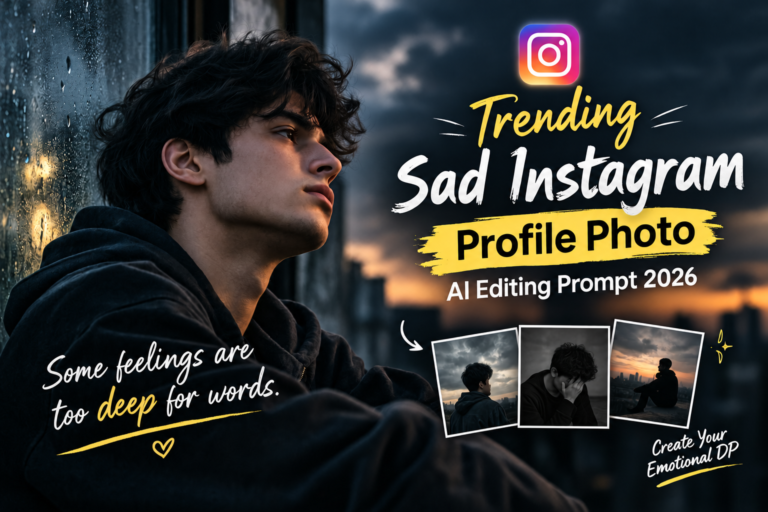
Cinematic background portrait prompts can turn a simple photo into a stylish, movie-like portrait. With the right background and mood, your photo can feel more professional and creative. Also see: Trending Sad Instagram Profile Photo AI Editing Prompt 2026
You can create portraits with rainy streets, city lights, luxury rooms, sunset views, neon backgrounds, mountains, or dark studio settings. Add soft light, background blur and a clear mood for a realistic result.
Cinematic Background Portrait Prompts
Cinematic background portrait prompts are instructions that tell an AI image tool how you want a portrait to look.
Instead of simply asking for a “cinematic portrait,” you can describe the background, lighting, camera angle, depth of field, colors, and overall mood.
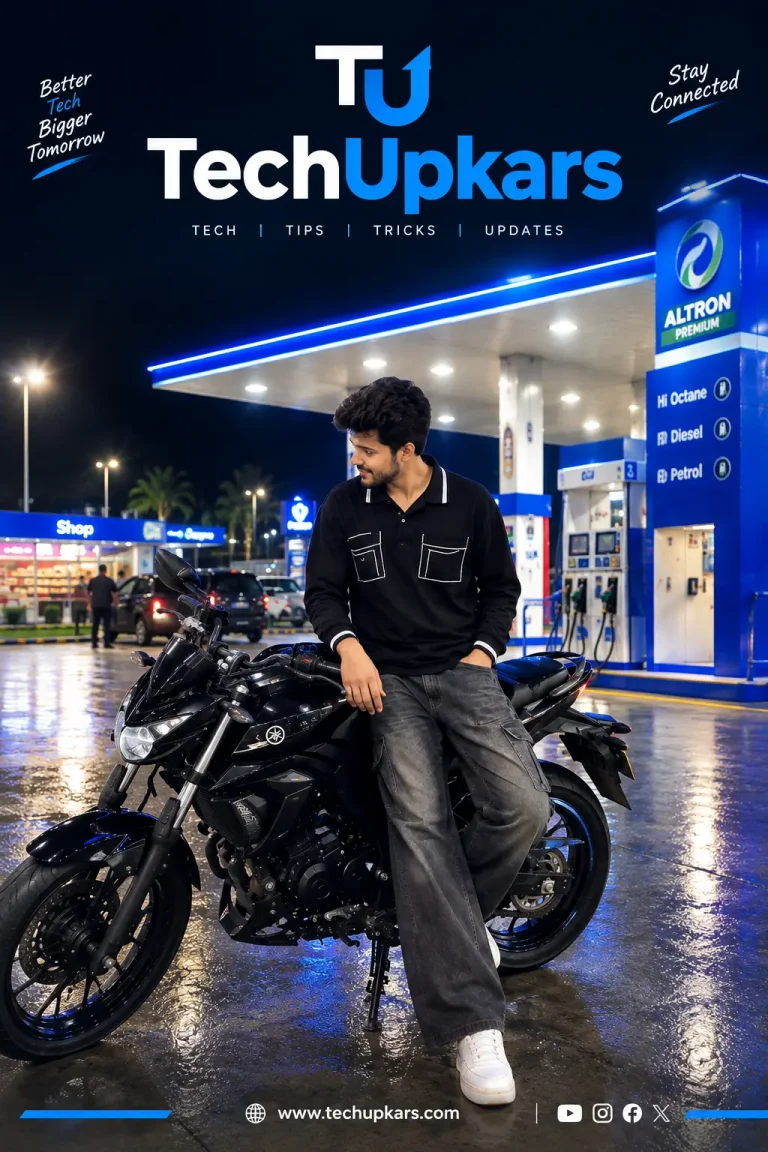
For example, you can create a portrait with a rainy city background, glowing lights, soft side lighting, background bokeh, and an 85mm camera look. These extra details help create a more realistic and cinematic result.
Cinematic Background Portraits Are Popular?
People commonly use these styles for:
Best Prompts For Cinematic Background Portrait
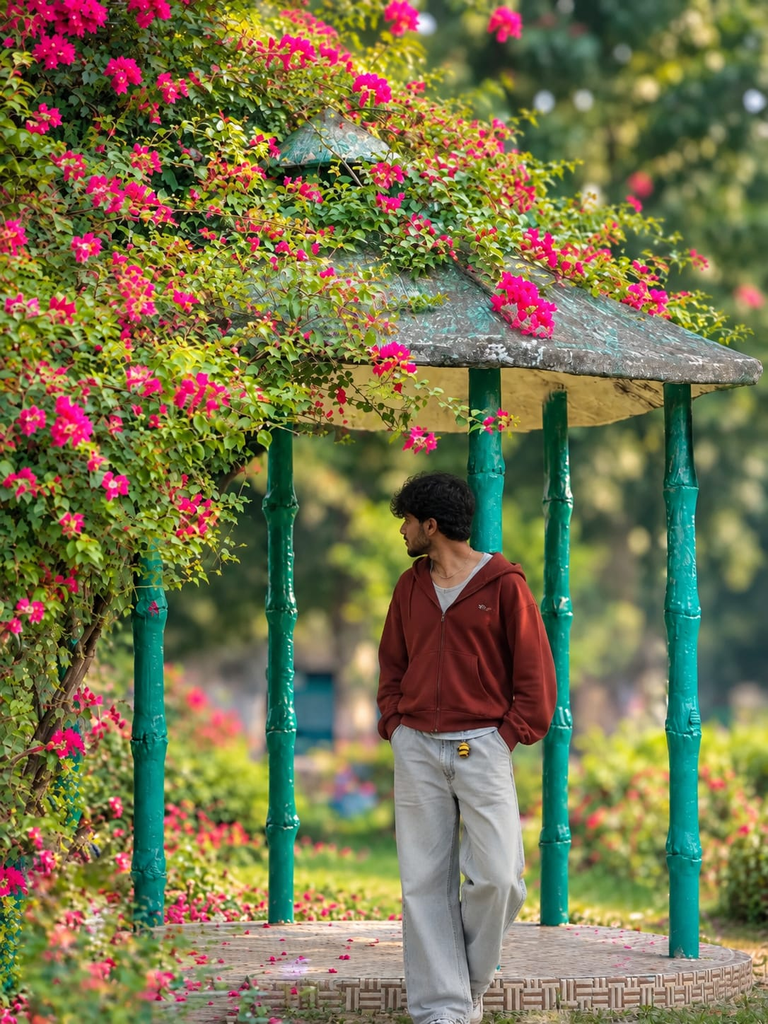
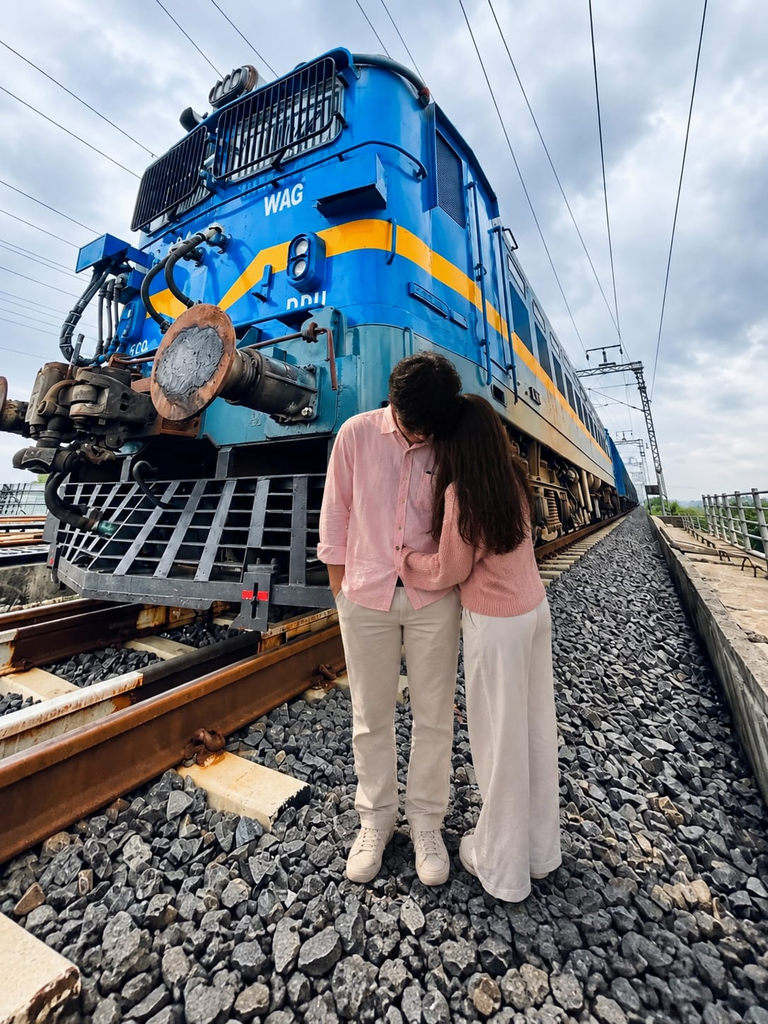
How to Use Cinematic Background Portrait
Using these prompts is easy.
Step 1: Choose a portrait style you like.
Step 2: Copy the complete prompt.
Step 3: Add your own details, such as clothing, hairstyle, location, pose, and expression.
step 4: Upload your reference photo if your AI tool supports image references.
step 5: Paste the prompt into your AI image generator.
Step 6: If the background looks too sharp, add phrases like “shallow depth of field” or “soft background blur.”
Step 7: Create a few versions and choose the one with the best lighting, background, and facial details.
Tips That Makes Cinematic Portraits
Common Problems and Easy To Fixes
Background Looks Fake
Add words like realistic photography, natural lighting, realistic depth, subtle background blur, and photorealistic.
Face Looks Too Dark
Add soft fill light on the face or reduce the amount of deep-shadow effects in your prompt.
Background Is Too Sharp
Use shallow depth of field, creamy bokeh, softly blurred background, and strong subject separation.
There Is Too Much Neon
Use only one or two main colors and ask for subtle neon lighting instead of a highly colorful background.
Face Changes From the Original Photo
Use your original image as a reference if the AI tool supports it. Ask the tool to preserve the person’s main facial features, hairstyle, and overall appearance.
The Image Looks Like a Normal Photo
Add details such as directional lighting, cinematic color grading, atmospheric haze, subtle film grain, lens look, and background separation.
FAQs
Hi, I’m Kiara Sharma, a technology writer who writes about useful apps, digital tools, photo editing, and new tech trends. I share simple tips and clear information to help readers understand technology without complicated language.
One Comment